
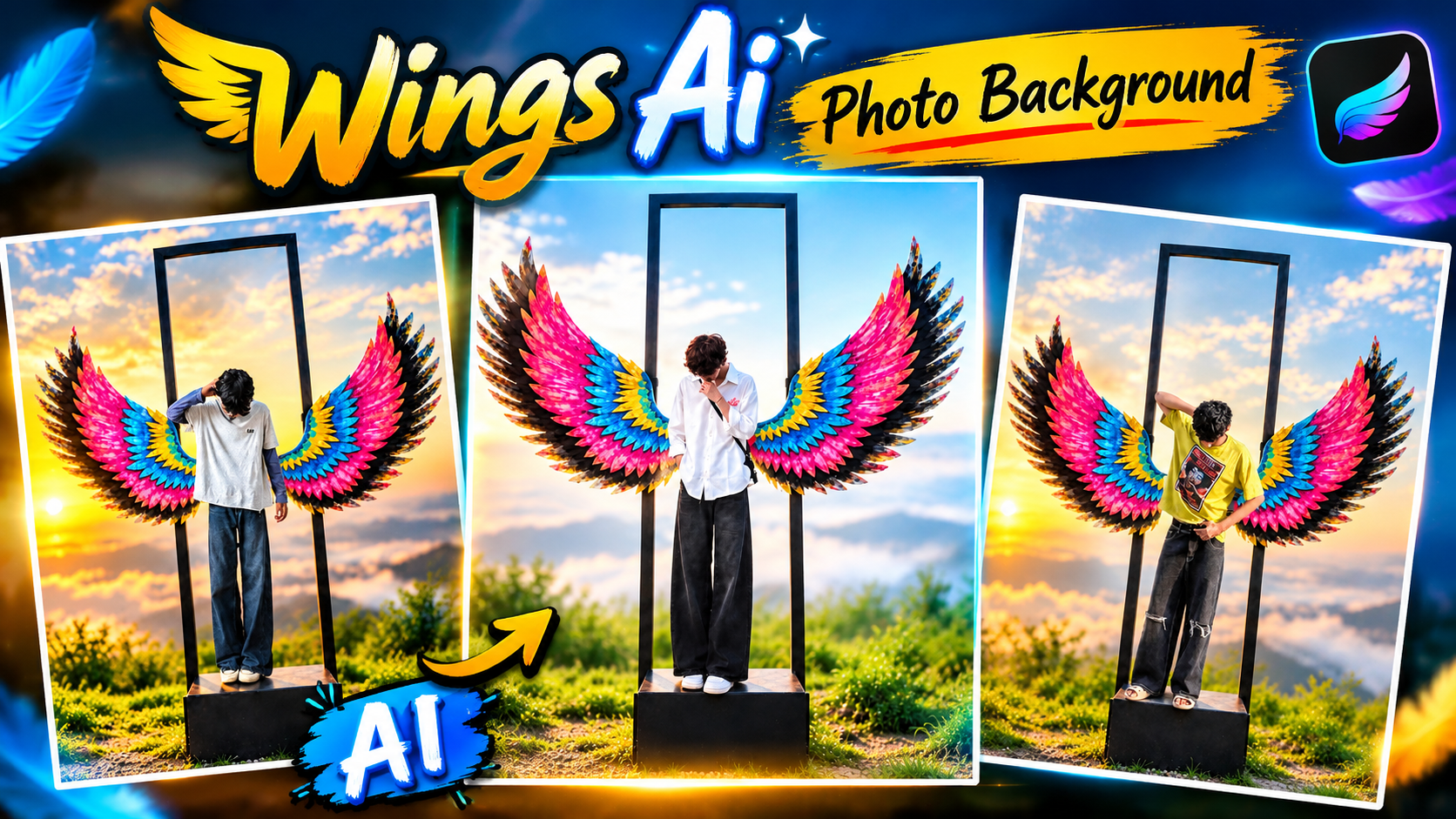
Wings AI Photo Background Prompt – AI Photo Editing is becoming increasingly popular on social media. Every day, new AI photo background trends are emerging, and one of the most exciting trends is the Wings AI Photo Background. This editing style allows you to transform an ordinary photo into a stunning portrait featuring huge, colorful angel wings. You have probably seen photos where a person is standing in a beautiful natural environment with two giant, colorful wings behind them. The wings feature beautiful pink, blue, yellow, and black feathers. The scene also includes a blue sky, soft white clouds, green mountains, and warm sunlight, making the photo look truly eye-catching. The best part is that you don’t need Photoshop or any complicated photo editing skills to create this amazing look. All you need is a Wings AI Photo Background, your own photo, and a suitable AI prompt. In this article, I’ll show you how to create your own stunning Wings AI Photo easily using Google Gemini AI.
Wings AI Photo Background Prompt
Let me tell you a little more about this photo style. Wings AI Photo Background is a creative background featuring two large, colorful angel wings behind a person. These wings are usually designed with beautiful feathers in different colors, making the overall photo look more attractive and eye-catching. This type of background often includes a beautiful sky, soft white clouds, green mountains, natural surroundings, and warm sunlight. Some designs also feature a black rectangular frame with a platform underneath, giving the photo a unique and stylish appearance. You can use this background to create stunning AI portraits for Instagram, Facebook, WhatsApp, and other social media platforms.
What Need To Generate Wings AI Photo ?
If you don’t have the right materials ready, you won’t be able to generate this photo properly. To create this trending AI photo, you only need three essential things. Once you have all three ready, you can easily generate a stunning Wings AI Photo using an AI image editing tool. So, before starting the photo editing process, make sure you have these three things ready:
1. Wings AI Photo Background: First, you need to download your preferred colorful Angel Wings Background. This will be used as the reference background for your final photo.
2. Your Own Photo: Choose a clear, high-quality full-body photo where your outfit and body position are clearly visible. This will help the AI place you naturally into the background.
3. AI Photo Editing Prompt: You also need the correct AI prompt to combine your original photo with the downloaded background and create the desired result.
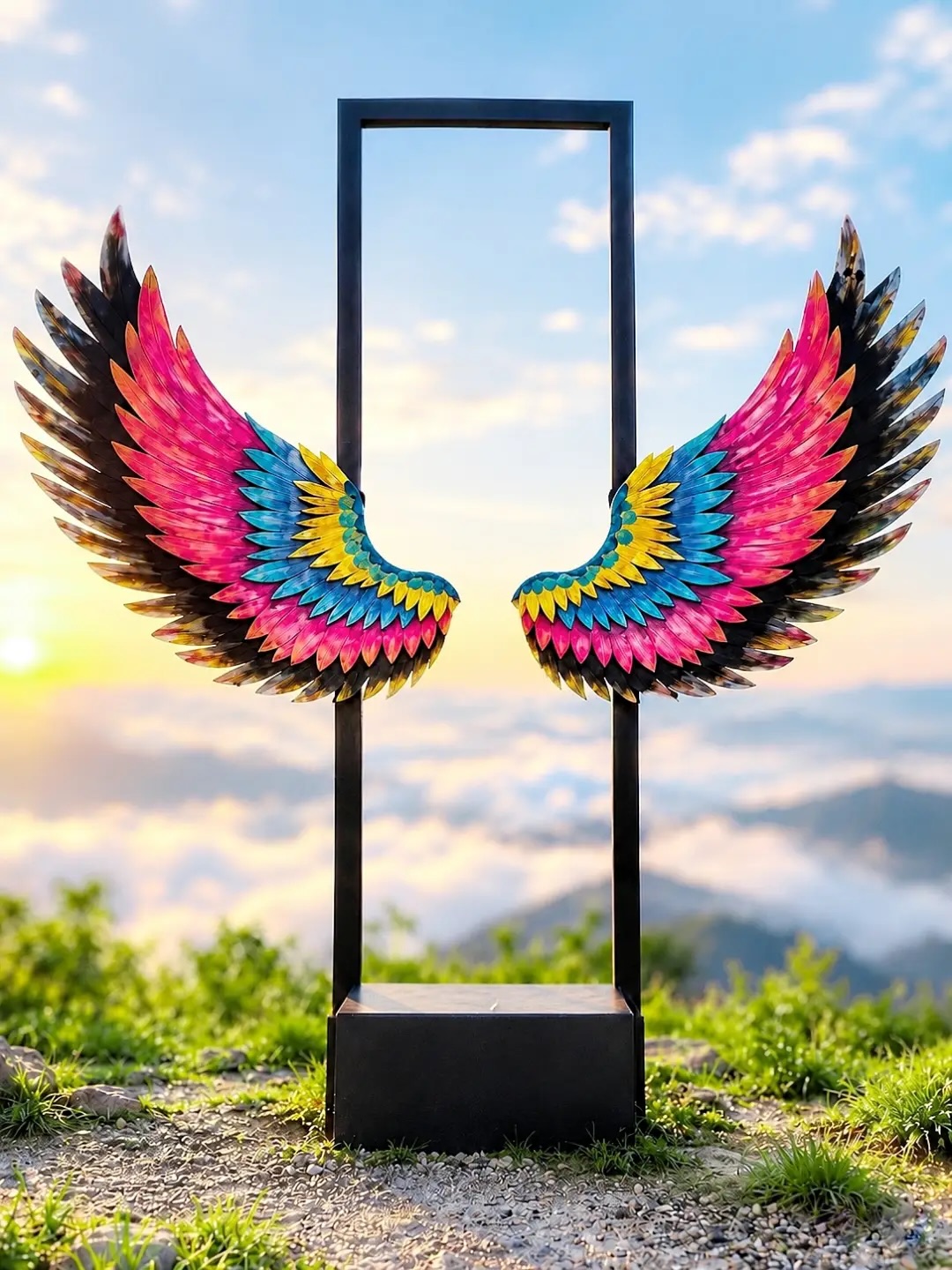
Real image use and backgroud. Place
this person in the second photo in a
realistic manner and adjust them to
match the second photo; do not change
anything else. Keep the background
exactly as it is-do not alter it at
all-and do not change the face 100% real same to same.

Enhance the image to 8K quality
and set the aspect ratio to 3:4.
and Backgroud blur 40%/ and Backgroud
size increase 30%
How To Use Wings Ai Photo Background?
First, download the Wings AI Photo Background provided in this article. Try to use a high-quality background so that the wing design, feathers, and other details remain clear and sharp. Now, open Google Gemini AI and upload the photo you want to use for editing. For better results, choose a clear, high-quality full-body photo where your face and outfit are clearly visible. Next, upload the Wings Background image you downloaded earlier. At this point, you should have two images uploaded to Gemini AI. The first image should be your original photo, and the second image should be the Wings Background. Now, copy the Wings AI Photo Editing Prompt provided below and paste it into Gemini AI. The prompt will guide the AI on how to place your photo naturally into the background while keeping the original design. Once both images and the prompt are uploaded, click the Generate button and wait for Gemini AI to process your request. Within a short time, Gemini AI will create your new Wings AI Photo. If you like the result, simply download and save the generated image to your device.
Conclusion
While generating your photo, keep a few important things in mind
- Always use a clear, high-quality photo of yourself.
- Using a full-body photo can help produce better results.
- Make sure your background image is clear and in high quality.
- Include instructions in your prompt to preserve your original face and outfit.
Following these tips will help your photos look more natural and realistic, rather than AI-generated. The Wings AI Photo Background is a great way to give your ordinary photos a completely new and attractive look. You don’t need any special photo editing skills or Photoshop knowledge. Just use a background image, your own photo, and the correct prompt to create a beautiful AI portrait. If you face any problems while generating your photo, feel free to let me know.
